
What you'll need
Two artefacts are referenced below, depending on which approval path applies to your plan.
MiroSync install URL
MiroSync Client ID
Approve MiroSync for your workspace
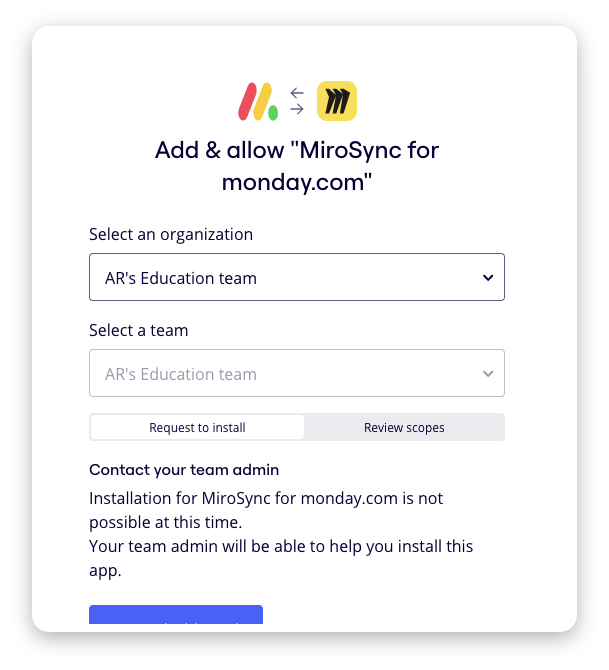
Three approval paths are documented below. Use the one that matches your Miro plan and how the request reached you. Miro's own help articles are linked for each path; the navigation and screenshots there are authoritative.
A. Install MiroSync for the team
Available on Business, Enterprise, and other plans with team-level app management. Suitable when a Team Admin or Company Admin wants to enable MiroSync for a single team.
- While signed in to Miro as a Team Admin or Company Admin, open the MiroSync install URL above.
- In the "Add & allow MiroSync for monday.com" dialog, select the team to install MiroSync for, then click Add.
- MiroSync is now installed for the selected team. Per Miro's documentation, "Team members can always authorize already added apps", so other users in the team can now connect MiroSync from monday.com or Miro without further admin action.
Miro reference: How to install apps.
B. Approve an in-product app request
Available on the Enterprise plan. If a user submitted a request through Miro's in-product Send request button, you will have received an email notification and the request appears in your Admin Console.
- As a Company Admin, navigate to Company Settings → Apps and integrations → Apps → App Requests.
- Locate the MiroSync request and approve it.
Per Miro's documentation: "When you approve the request, the app becomes approved for installation by other users as well."
Miro reference: App request flow.
C. Add MiroSync to the organization's approved apps list
Available on the Enterprise plan. Suitable when a Company Admin wants to pre-approve MiroSync workspace-wide so any user can install it themselves, rather than installing it on a per-team basis.
- As a Company Admin, navigate to Company Settings → Apps and integrations → Apps → Manage apps.
- Ensure the Allow only apps from the list below toggle is enabled (this is the restriction users are encountering).
- In the Enter app name or clientID field, paste the MiroSync Client ID above and click Approve.
Miro reference: App management.
Note: Miro is rolling out a redesigned Admin Console on Enterprise. Menu labels and layout may differ from screenshots in older help articles. See Miro's new Admin Console for the current navigation reference.
About MiroSync
MiroSync for monday.com is a bidirectional integration between monday.com and Miro. It enables teams to import monday.com items as live Miro cards, edit those items from within Miro, and convert sticky notes into monday.com tasks. Changes synchronize automatically via monday.com webhooks.
MiroSync requests the following Miro OAuth scopes: boards:read, boards:write, and identity:read. It does not access workspace data outside of these scopes, board content unrelated to MiroSync's own cards, or user-level secrets.
- Product page: mirosyncformonday.com
- Privacy policy: mirosyncformonday.com/privacy.html
- monday.com marketplace listing: View on monday.com
Support
For questions not addressed on this page, or for Miro configurations not covered here, contact the MiroSync support team.